VS Code Fundamentals
Starting VS Code
Start VS Code and open the local repository you want to work on:
code /cvah/git/<REPOSITORY>
NOTE: You may be prompted to
Trust the authors of all files in the parent folder 'git'- check the box and click Yes
Navigating Repository Files/Folders
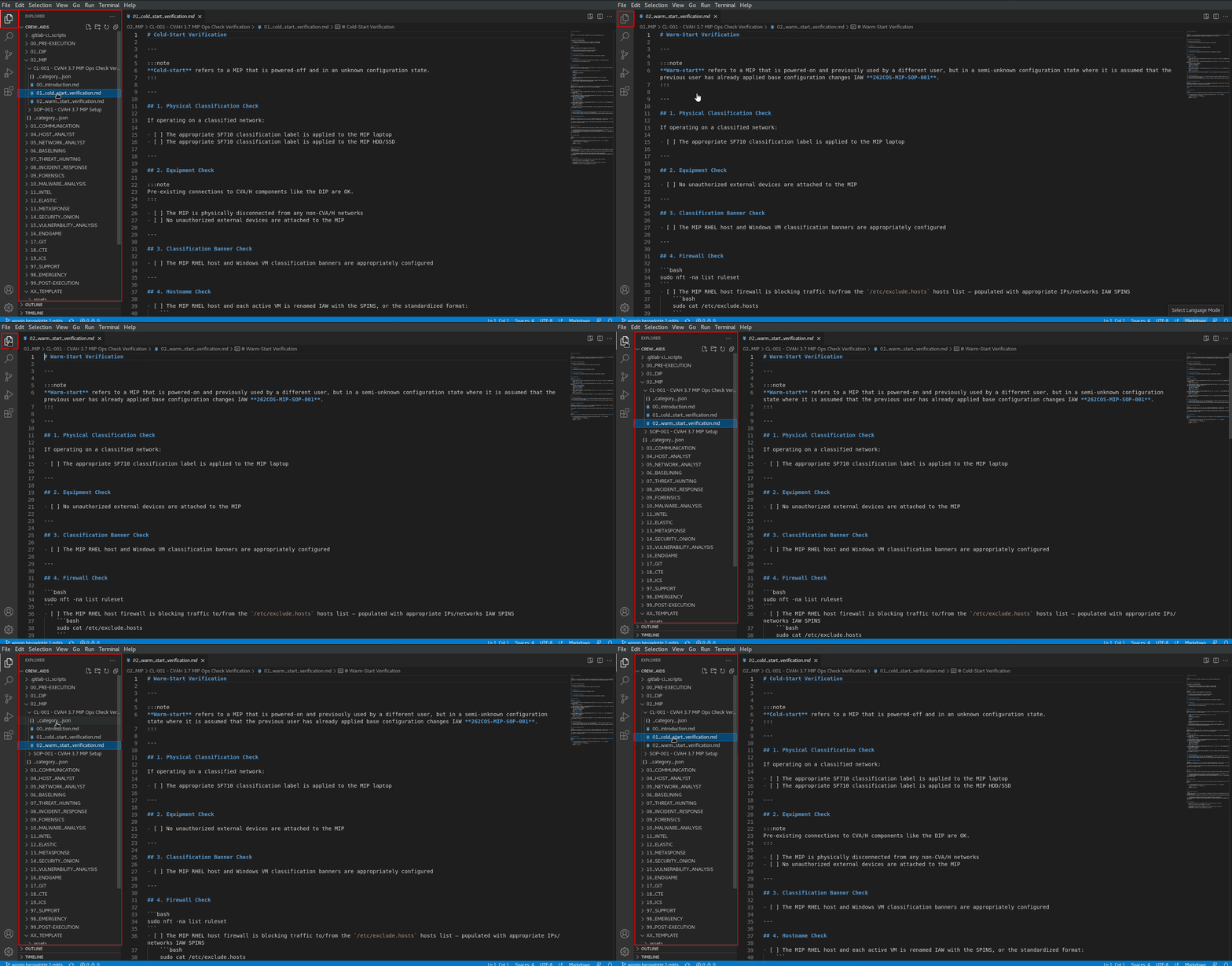
The VS Code Explorer can be used to navigate the repository files/folders, as well as perform file/folder operations like editing, creating, deleting, renaming, moving, etc.
Performing Git Actions
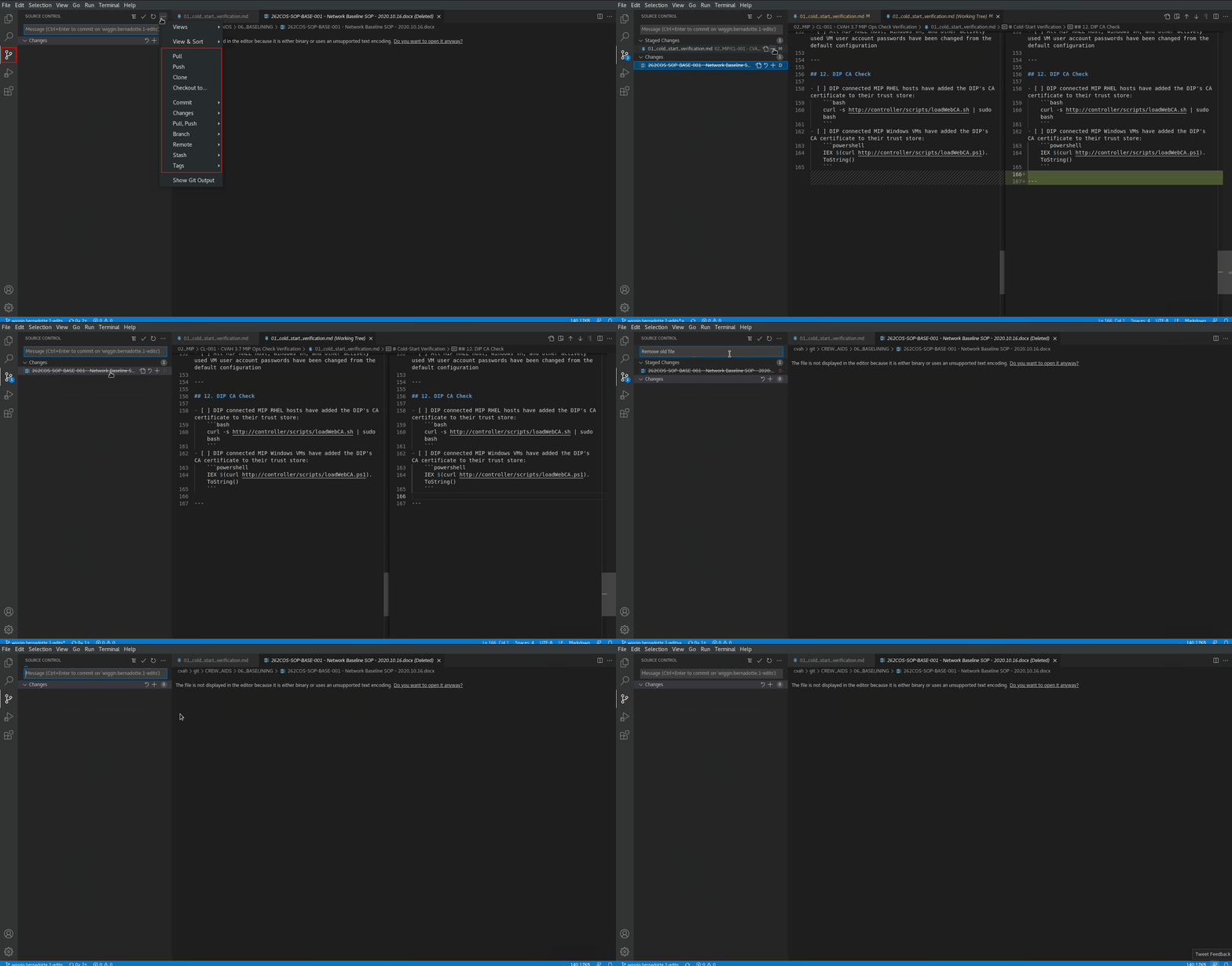
VS Code can perform many Git actions from the Source Control tab - while using the Git credentials you already have saved under your user profile.
NOTE: You may get a pop-up asking if you want VS Code to routinely perform a
git fetch- click Yes. Accepting this will cause VS Code to frequently check the DIP Gitlab repository and let you know if and when there are any updates to the repository on the remote end
The typical VS Code workflow is usually:
sync(Pull, Push->Sync) to pull down changes from the remote (DIP Gitlab)- Make file changes to the repository
stage(The+button beside each file under Changes) each change that will fall under the same commitcommit(CTRL+EnterorCommit->Commit) the staged changessync(Pull, Push->Sync) to push your changes as well as pull down changes to/from the remote (DIP Gitlab)